


Polycam: 3D Scanner & Editor
3.51.50K Reviews
App Specs
- Version
- 3.0.13
- Updated On
- License
- Free
- Downloads
- 1,000,000+
- Developer
- Polycam
- Categories
- Photography
- Platform
- Android, iOS
Screenshots
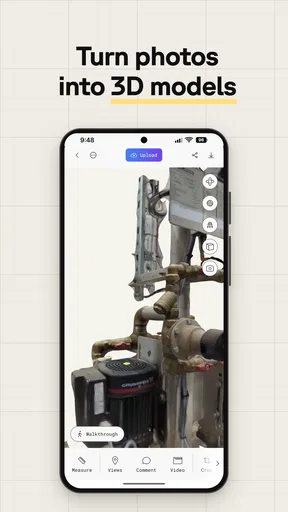
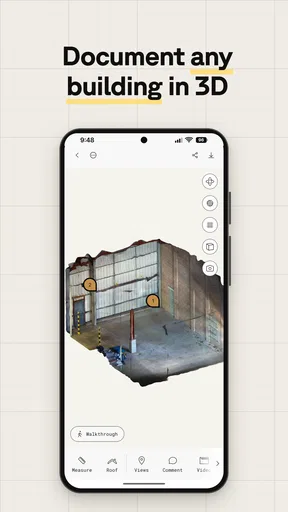
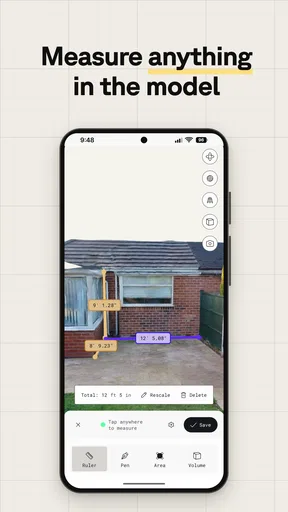
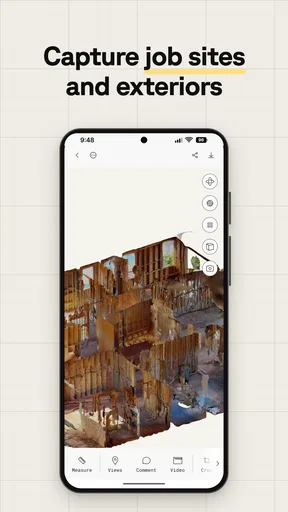
 Analysis by AppCompare
I choose a 3D scanning app by asking a practical question first: do I want a quick visual record, a model I can edit, or geometry I can use in another project? Those are related goals, but they are not the same. Polycam: 3D Scanner & Editor is most interesting when I want to move from a real object or space to a digital model, then do something with that model rather than leave it as a photo. It is a photography app from Polycam, and its appeal is the bridge between camera capture and 3D work.
That bridge matters in ordinary situations. I might want to remember the shape of a handmade ornament, show a friend a room layout, or collect a visual reference for a creative project. A regular photograph is faster and often better for showing color and mood, while a measuring tool is better when exact dimensions are the priority. Scanning sits between those approaches: it can preserve form in a way a flat image cannot, but it still takes care and should not automatically be treated as a precision survey.
What I would decide before scanning
Before opening the camera, I would think about the subject and the intended result. A matte object with visible detail is usually a more cooperative subject than something reflective, transparent, very dark, or visually plain. A scan depends on capturing enough useful visual information from different viewpoints. If the surface gives the camera little to distinguish, or if reflections change as I move, I would expect more cleanup and a less dependable result.
Scale and access also shape the choice. A small object that I can walk around is a sensible first test because I can control the distance and cover its sides. A cramped corner, a moving subject, or a large space with blocked sight lines asks more of the capture process. I would not assume one pass will include every hidden surface; if the underside or back matters, I need to plan how to expose it while keeping the capture coherent.
The app is free to install and is rated for Everyone. Its current version is 2.1.17, and it requires Android 10 or later on Android. There are in-app purchases, with listed item prices ranging from $17.99 to $199.99, so I would explore the basic workflow before paying for anything. The average rating is 3.7 from around 24,000 ratings, and it has over a million installs. Those figures suggest it has reached plenty of people, but they do not tell me whether it suits my device, subject, or expectations; a test scan is more informative.
Getting Started with Polycam
First things first, downloading and installing Polycam: 3D Scanner & Editor was a breeze. It's available for both Android and iOS, so no worries about compatibility. Once I had it up and running, I was greeted with a clean and straightforward interface. It's always a relief when an app doesn’t overwhelm you right off the bat, right?
Creating an account was optional, which I appreciated since I wanted to jump right into the action. However, having an account does unlock more features and makes it easier to save and share your creations across devices.
Worth Reading Before You Choose

EA SPORTS FC Mobile 26 Is a Bigger Football Game, but It Takes Time

Flipboard Shows What News Apps Must Do Beyond the Feed

Switching to Android Auto Means Rethinking Your Driving Routine

Google Calendar Makes a Crowded Week Easier to Manage

Ludo King Makes the Most of the Minutes Between Plans

Baby Panda World Brings Quick Play to Modern Phones, but Its Game Library Feels Busy
The Scanning Experience
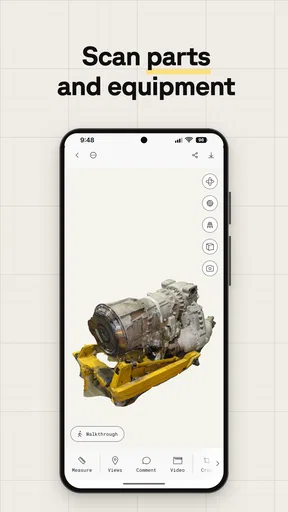
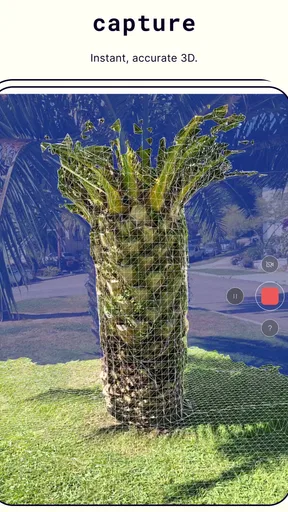
Now, onto the fun part—the scanning! Polycam lets you create 3D models using your device’s camera, and it supports both LiDAR and photogrammetry. If your phone's packing a LiDAR scanner, you're in for a treat. The precision and detail are fantastic. But even without LiDAR, using just the camera, you can still achieve impressive results.
I started by scanning a small statue I have at home. The app guides you through the process, reminding you to move slowly around the object to capture all angles. It’s a bit like filming a mini-movie starring your object. Once finished, Polycam processes the images and voilà, you’ve got a 3D model.
Getting cleaner captures in everyday use
For a better first result, I would clear a little space around the subject and make one slow, steady circuit before trying ambitious angles. The point is not to move as much as possible; it is to give the capture enough overlap and a consistent view. I would keep the object still, avoid changing the lighting partway through, and check whether I have covered the top as well as the sides. These small habits are more useful than rushing through multiple scans and hoping the software can repair gaps.
A realistic use case is documenting a second-hand chair before I list it for sale. A few ordinary photos can show its finish and condition more clearly, but a scan could help someone understand its overall shape and proportions. I would still include normal photos and measurements if the buyer needs to judge fit. That distinction is important: the model can communicate form and help with visual reference, while a tape measure remains the sensible choice for decisions that depend on exact dimensions.
I would also treat a scan as a record of what the camera could see, not a magical copy of the object. Thin legs, narrow gaps, hidden backs, and details touching the floor can be easy to miss. If a feature matters, I would inspect the model from several angles after processing and decide whether a second capture is worthwhile. This review step saves time later, especially if the model is going into a presentation or a design conversation.
Editing and Exporting
Creating a 3D model is just the beginning. Polycam offers a robust editing suite where you can tweak your models. I spent some time smoothing out rough edges and adjusting textures. It’s intuitive, with tools that are easy to pick up even if you're new to 3D modeling.
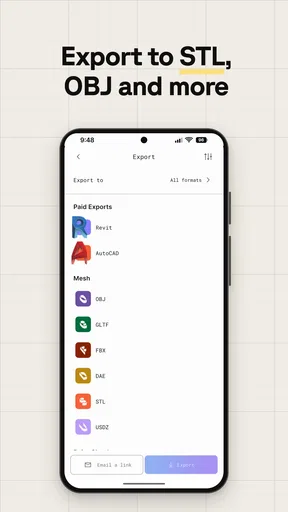
Once satisfied with my masterpiece, exporting was a cinch. Polycam supports multiple formats like OBJ, STL, and more, making it easy to share with friends or integrate into other projects. I could even export directly for 3D printing, which is pretty awesome if you’re into DIY projects.
Choosing a useful handoff
Exporting is where I would pause and ask what the next step actually requires. A model intended for a visual reference does not necessarily need the same preparation as a model intended for printing or further editing. A file format that another tool can open is a helpful start, but it does not guarantee that the model is clean, correctly scaled, or ready for fabrication. I would open an exported file in the destination workflow and check it before relying on it.
This is also where casual scanning and production work part company. For a mood board, a classroom demonstration, or a quick concept conversation, an imperfect surface may be perfectly useful. For a manufactured part that must fit another object, I would verify critical measurements independently and expect additional modeling work. Polycam can make capture more accessible; it cannot remove the need to judge whether the result meets the job’s tolerance and quality requirements.
One practical tip is to keep the original capture and the edited version distinct in my own workflow. If smoothing or texture adjustments make a model look better on screen, I still want to remember that these are edits, not new evidence about the physical object. That matters when sharing a scan with someone who might interpret it as a faithful reference. I would label or describe the model plainly and mention any obvious missing areas rather than letting a polished view imply more certainty than it deserves.
Where a phone scan fits among alternatives
Compared with taking ordinary photos, a 3D scan gives a viewer more freedom to inspect shape and viewpoint. Photos are still the better choice when I need a quick, attractive record, when the subject is moving, or when lighting and texture matter more than volume. Compared with dedicated measurement or surveying tools, a phone scan is more approachable for exploration, but I would not use it as a substitute for a task that calls for dependable dimensions or formal documentation.
There is also a difference between scanning in an app and building a model manually in desktop 3D software. Manual modeling takes more deliberate work, but it gives a skilled user direct control over topology and design. Polycam is appealing when I want to start from the real world and get a useful visual base quickly. If I need a clean, engineered object with carefully constructed surfaces, I may be better off modeling it by hand or using a specialist workflow after capture.
For room planning, I would compare a scan with a purpose-built floor-plan or measuring approach. A scan can help communicate the feel and layout of a place, whereas a plan with checked dimensions is easier to use for fitting furniture. For artwork or collectibles, the balance shifts: a model can be an engaging way to share an object’s overall shape, but a conventional close-up photograph often preserves fine surface appearance more convincingly. I see these methods as complementary, not interchangeable.
Potential Uses and Community
So, who can benefit from Polycam? Honestly, almost anyone curious about 3D scanning. Whether you're an artist, a hobbyist, or even an educator, the possibilities are vast. I can see this being used in classrooms for interactive learning or by artists looking to bring their physical creations into the digital world.
What I also loved about Polycam is the community aspect. The app lets you explore models created by others, giving you inspiration and insights into the creative potential this app holds. It’s like having a gallery of 3D art right in your pocket.
That discovery side is useful in a specific way: browsing other people’s models can help me understand what kinds of subjects produce compelling results and how a 3D object reads when viewed from different angles. I would treat the gallery as inspiration rather than a technical benchmark. Someone else’s successful scan may have been made under different lighting or with different hardware, so I would not assume my own capture will match it automatically.
For an educator, a simple activity could be asking students to scan a familiar object, then compare what the model communicates with what a photograph communicates. The discussion can focus on viewpoint, missing surfaces, and the difference between appearance and measurable accuracy. For an artist, a scan might serve as a starting reference for a digital piece rather than a finished asset. Both uses benefit from keeping the goal modest and explaining what the model is meant to show.
I would recommend it most to people who are curious enough to experiment, willing to repeat a capture when the first result has gaps, and interested in sharing or editing a 3D model. It is less suited to someone who only wants a fast snapshot, dislikes reviewing results, or needs guaranteed measurement accuracy without extra checking. The camera-based workflow is approachable, but “easy to start” is not the same as “every scan is effortless.”
Time, learning, and the cost of changing tools
The main cost for a new user is not only money; it is learning what makes a good scan and deciding where the resulting model belongs. I would begin with an object whose shape is easy to inspect, then try a more complicated subject once I understand how movement and coverage affect the result. That progression makes it easier to tell whether a weak model came from the subject, the capture, or the editing choices.
If I already have a library of ordinary photos, I would not replace those images wholesale. Photos remain quick to review and easy to send, while 3D models add another step for people who need to open and explore them. I would use Polycam when depth and viewpoint add real value, and keep conventional images alongside scans for straightforward sharing. That mixed approach avoids forcing a 3D workflow onto people who do not need one.
The paid options are worth considering only after I know which part of the workflow I use regularly. Since the app includes purchases at a range of prices, I would first test capture, editing, and the kind of handoff I actually need. If my use is occasional and exploratory, the free starting point may be enough to judge whether the habit sticks. If I repeatedly reach a limitation that blocks a real project, then I can evaluate a purchase against that specific need rather than paying on the assumption that more features automatically mean better scans.
Final Thoughts
Overall, my time with Polycam was both fun and enlightening. It’s a powerful tool disguised as a simple app, making 3D scanning accessible to anyone with a smartphone. Sure, there might be a learning curve initially, especially if you're new to 3D modeling, but the app makes it easy to learn as you go. Plus, the community and resources available are a great help.
If you’re curious about diving into the world of 3D scanning, why not give Polycam a try? It’s got the tools you need to start creating and sharing your own 3D wonders. Happy scanning!
My recommendation is to approach it as a practical camera-based 3D tool, not as a replacement for every camera, ruler, or modeling program. If I wanted to preserve the shape of an object, build a visual reference, or make a scan that I can edit and share, Polycam would be an enjoyable place to start. I would test it on a manageable subject, inspect the result carefully, and only then decide whether its workflow fits the way I make things.
If I needed a quick record with no learning curve, a normal photo would win. If I needed exact dimensions for a consequential fit, I would measure independently. And if I needed complete control over a polished production model, I would expect to finish the work in a dedicated modeling workflow. Those limits do not make the app less useful; they clarify the situations where it earns a place on my phone.
Pros
- Easy-to-use interface for quick scanning.
- High-quality 3D models with detailed textures.
- Supports multiple export formats.
- Efficient cloud processing for faster results.
- Offers AR view to visualize models in real space.
Cons
- Requires an internet connection for cloud features.
- Limited features in free version.
- Some models may have imperfections.
- Battery drain during prolonged use.
- Occasional app crashes on older devices.
FAQs for Polycam: 3D Scanner & Editor
What is Polycam: 3D Scanner & Editor used for?
Polycam: 3D Scanner & Editor is a versatile app designed to turn your smartphone into a powerful 3D scanning tool. It allows users to capture high-quality 3D models of objects, spaces, and environments using LiDAR technology on supported devices. It's ideal for architects, designers, and hobbyists who need precise 3D representations.
What devices are compatible with Polycam?
Polycam is compatible with iOS devices that support LiDAR technology, such as the iPhone 12 Pro, iPhone 12 Pro Max, and newer models. While the app can function on non-LiDAR devices using photogrammetry, the results are optimized on devices with LiDAR capabilities for better accuracy and detail.
Is Polycam free to use, or does it require a subscription?
Polycam offers a free version with basic features, allowing users to perform scans and view 3D models. However, for advanced features like exporting models in different formats or accessing high-resolution scans, a subscription or one-time purchase may be required. Pricing details are available within the app.
How accurate are the 3D scans produced by Polycam?
The accuracy of Polycam's 3D scans largely depends on the device and conditions. On LiDAR-equipped devices, users can expect high precision, making it suitable for professional use. However, lighting and object complexity can affect results. Regular updates and tips within the app help improve scan quality.
Can I edit the 3D models within the app?
Yes, Polycam includes editing tools that allow users to refine their 3D models. You can trim, merge, and adjust models directly within the app. While it provides robust editing features, for more advanced editing needs, exporting to specialized 3D editing software might be necessary.


